
Guides Earthworks takeoff AI connectors
Teach Claude or Codex to price jobs your way
Put your rates, bulking factors and stage names in a skill once, so Claude or Codex prices every job your way through the SitesAI Estimate connector.
The connector gives Claude, Codex or ChatGPT the same tools you use in SitesAI Estimate: open the plan, calibrate, trace, run the takeoff, price the lines. What it does not give the assistant is your way of pricing — your rates, the swell factor you use for the local clay, the way you name stages, what you leave out of a bulk earthworks quote.
Without that, every session starts from zero and you type the same corrections every time. With it, "open the Kilsyth plan, calibrate from the 10 m bar, price bulk excavation" comes back priced the way you would have priced it. The thing that carries your way of working is called a skill — a plain-text file the assistant reads before it starts.
This guide gives you a starter skill for SitesAI Estimate, shows what to put in it, and how to install it in each assistant.
What goes in the skill
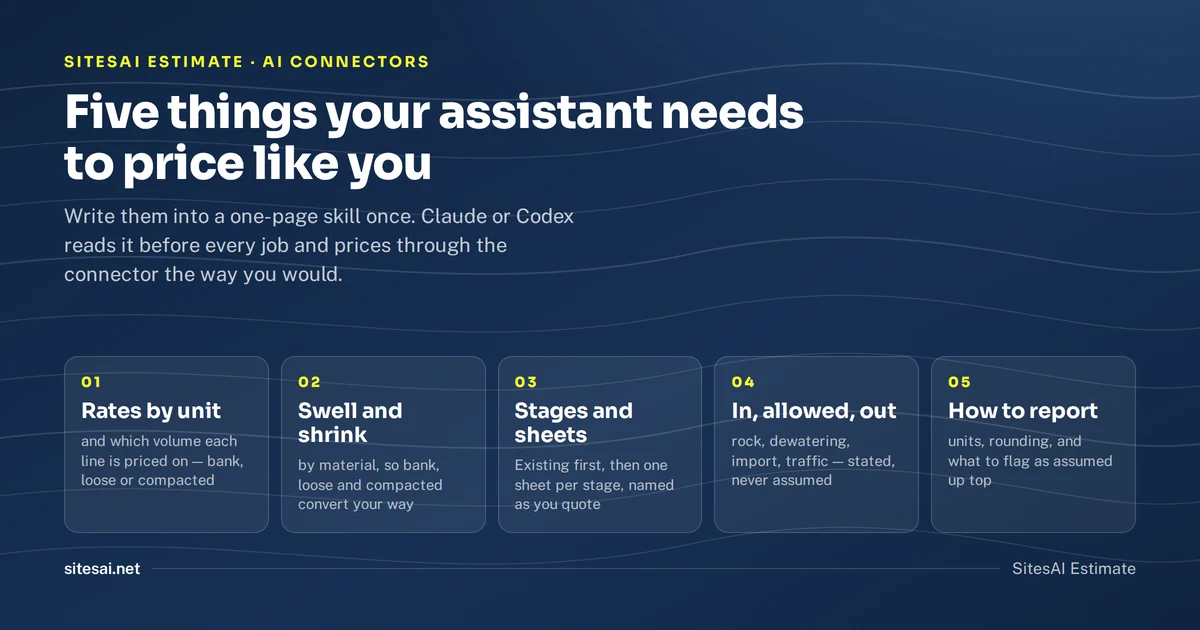
Five things, and most of them you already have in a spreadsheet somewhere:
- Rates by unit, and which volume each line is priced on. Excavation on bank m³, haul on loose m³, fill on compacted m³, trim on m². The nine lines from the Excel estimate guide are the template.
- Swell and shrink by material, so the assistant converts between bank, loose and compacted the way you do. Start from the bulking table and overwrite with your numbers.
- Stages and sheet naming.
Existing, then one sheet per stage named the way you quote them. - Inclusions, allowances and exclusions — rock, dewatering, imported fill, traffic management.
- How you want the summary reported — units, rounding, what to flag as assumed.
Everything else in the file is working discipline: calibrate before measuring, dry-run before drawing, verify a quantity independently before pricing it, never invent a number.
Step 1 — Connect the assistant
Follow the connectors page for your client — Claude, Claude Code, Codex or ChatGPT. The connector needs the AI plan; the app has a free 14-day trial (Account menu → Start free AI trial, no card). Keep a signed-in SitesAI Estimate tab open while the assistant works, so you see every change as it happens.
Step 2 — Download the starter skill
- sitesai-estimate-starter-skill.zip — the skill folder:
SKILL.md, a tool map, and anAGENTS.md.examplefor Codex. - Read SKILL.md in the browser if you just want to see it first.
The first section, Your company rules, is yours to edit. The rest you can leave alone.
Step 3 — Fill in your rates and factors
Open SKILL.md and replace the placeholders. Every rate starts as POA on purpose: the skill tells the assistant that POA means ask me — it will never fill a blank with a guess. Put a number only where you want the assistant to use it without asking.
| # | Line                          | Unit | Rate  | Priced on                       |
| 3 | Bulk excavation (cut)         | m³   | 14.50 | bank volume                     |
| 4 | Load and haul on site         | m³   | 6.20  | loose volume (bank × swell)     |
| 5 | Place and compact fill        | m³   | 9.80  | compacted volume                |
Do the same for the factors table (one row per material you actually dig), rename the stages the way you quote them, and adjust the exclusions and reporting rules to your house style.
Step 4 — Install it
- Claude (claude.ai) — Settings → Capabilities → Skills → upload the zip. Or open a Project and paste
SKILL.mdinto its instructions. - Claude Code — put the folder at
.claude/skills/sitesai-estimate/inside your estimating folder. - Codex — put the folder in your estimating folder and rename
AGENTS.md.exampletoAGENTS.md; Codex reads it at the start of every session. - ChatGPT — open a Project and paste
SKILL.mdinto its instructions.
Step 5 — Run one job and check it
Pick a plan you have already priced by hand and ask for exactly that:
Open the Kilsyth plan, calibrate from the 10 m scale bar, trace the lot boundary, set the pad at RL 42.50, and price bulk excavation and fill at my rates.
Then check it the way you would check a junior's work. The quantities are in the Estimate panel in your open tab (the assistant reads the same numbers with get_estimate); the boundary and the levels are on the sheet; the rates it used are the ones in your table. If a line came back as POA — rate needed, that is the skill doing its job.
When the first job matches your own number, you have a tested skill. From then on, every plan you throw at it is priced your way in the time it takes to describe the job.
What it will never do
- Invent a rate or a level.
POAmeans ask; levels come from the plan or from you. - Change your estimate out of sight. You keep the tab open, and every tool call renders in it.
- Publish a plan. It will not create a public share link without being told to.
- Send your rates anywhere. The skill lives in your file or your assistant's project. SitesAI receives a rate only when you price a line with it.
If your pricing rules change, change the file. The assistant picks it up next session — no retraining, no settings screen.
Questions people ask
Do I need the AI plan?
Yes — the connector is part of the AI plan (US$99 per user a month), and there is a free 14-day AI trial with no card, started from the app (Account menu → Start free AI trial).
Will the assistant invent a rate?
No. The starter skill tells it to price only from your table or from rates already in the project, and to ask when a rate is missing — every rate in the template is POA until you fill it in.
Does this work in ChatGPT?
Yes. Connect ChatGPT through the connector (Developer mode) and paste the skill into a Project's instructions.
Where do my rates go?
They stay in your file, on your machine or in your assistant's project. SitesAI never receives them unless you price a line with them.
Try it on your next plan set — free.
Sign in with Google or Microsoft, add a PDF or DWG/DXF, and see cut and fill in minutes. Pro is US$39 per user per month, the AI plan has a free 14-day trial; cancel any time. What SitesAI Estimate does.